📺 Chris TV — Setup
About 5 minutes, one time.
Install from your browser
If you are reading this on the phone or tablet you want it on, just tap:
⬇️ Download Chris TVOn a different device? Open a browser on the phone and go to christv.ca/apk.
It downloads the app. Open the downloaded file — tap the download bar, or find chris-tv.apk in Files / Downloads. When your phone asks, allow your browser to install unknown apps (a one-time toggle), then tap Install and Open.
No “developer mode” needed on a phone — you just allow the install when prompted, then turn it back off if you like.
Then jump to step 4 below (enter your access code).
Get the “Downloader” app
Hold the voice button on your Fire TV remote and say Downloader — or open Search on the home screen — then install the orange Downloader app (by AFTVnews). It's free.
Let Downloader install the app (one-time)
Go to Settings → My Fire TV → Developer options → Install unknown apps, find Downloader and switch it ON.
Don't see “Developer options”? In My Fire TV → About, highlight your device name and click it 7 times — it appears after that.
Download Chris TV
Open Downloader. In the box, just type this code:
8612626Press Go. When it finishes downloading, click Install, then Open.
(Prefer a link? You can instead type christv.ca/apk.)
Pick free, trial, or enter a code
When Chris TV opens, choose Continue with the free version, try Premium free, or — if you were given an access code (6 letters and numbers, no dashes, for example K7P9RM) — enter it and press Activate.
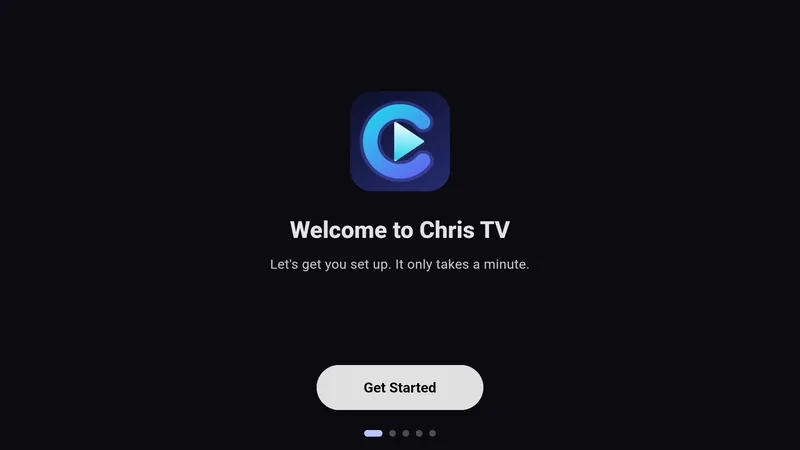
What you see when Chris TV first opens.
Add your IPTV login
Tap Add account, choose Xtream, and enter your Server URL, Username, and Password (from your IPTV provider). Tap Connect — your channels load in a few seconds.
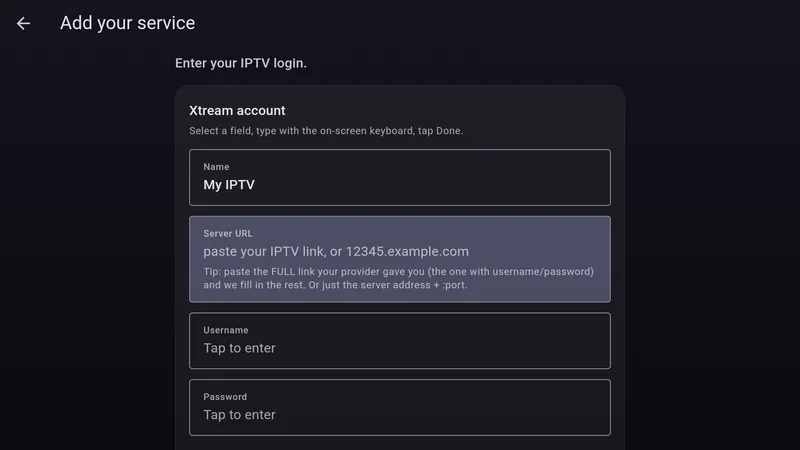
Enter your provider's Server URL, Username and Password here.
You only do this once per device. Your login stays on your device.
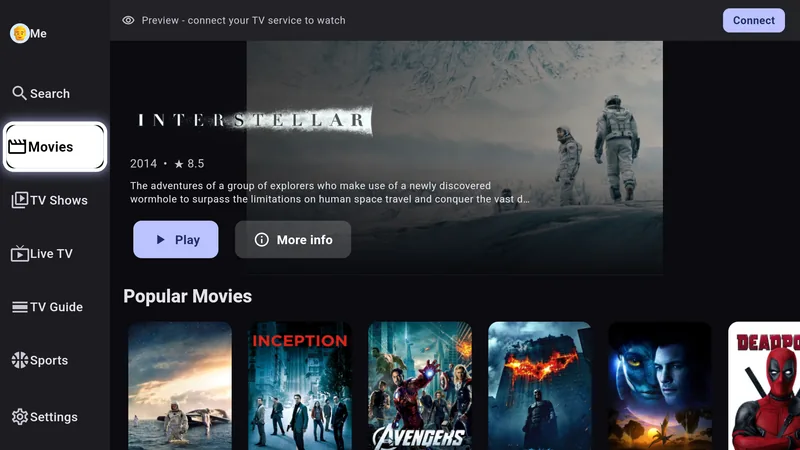
That's it — your home screen, ready to watch.